While you could simply enjoy the game as is, you can also install additional mods made by Donut Team or the community to enhance the game further.
Mods come in two forms, as a folder and as Lucas Mod Launcher Mod file (.lmlm). The install process for both is the same.
1. Downloading Mods
The best place to get mods from is our mod sharing and discovery platform, Mod Bakery.
You can also find older mods posted before the launch of Mod Bakery on the Donut Team forum's Mod Showcase Board and its Released Flair.
2. Installing Mods
There are a few folders where you can install mods:
- The "Mods" folder next to the Mod Launcher.
- The "Mods" folder in "Documents\My Games\Lucas' Simpsons Hit & Run Mod Launcher\Mods"
- Any additional mods folders you have specified in the Launcher's Settings.
Any of these locations can have subfolders for further organisation of mods by creating folders with square brackets in the name, for example: [Campaign Mods].
Any mods placed into a folder named [Disabled] will be ignored.
How do I extract .ZIP, .RAR and .7z files?
Mods may be distributed in these various compressed archive formats. If they are, you will need to extract them first.
If it's a ZIP file, you can simply right click it and select "Extract All...".
If it's a .RAR or .7z file, you can use 7-Zip to extract them.
3. Enabling Mods
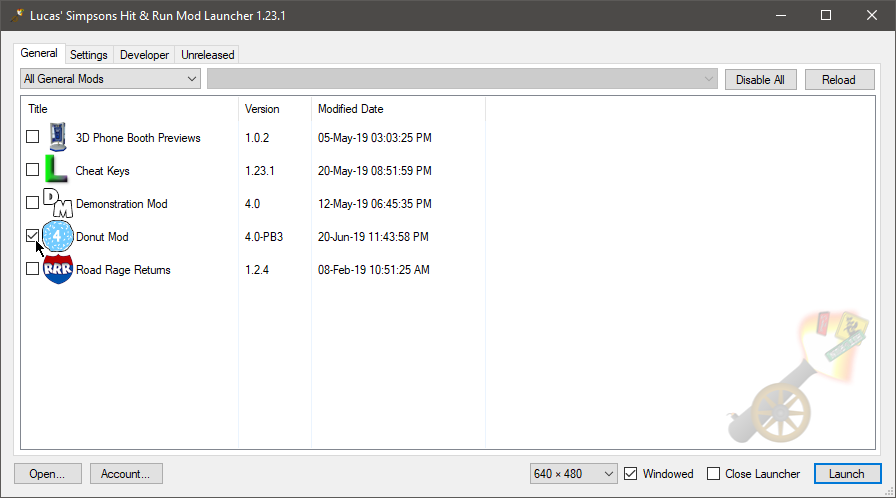
Once you've installed the mods you want to use, you can simply enable them by ticking them in the Mods List.