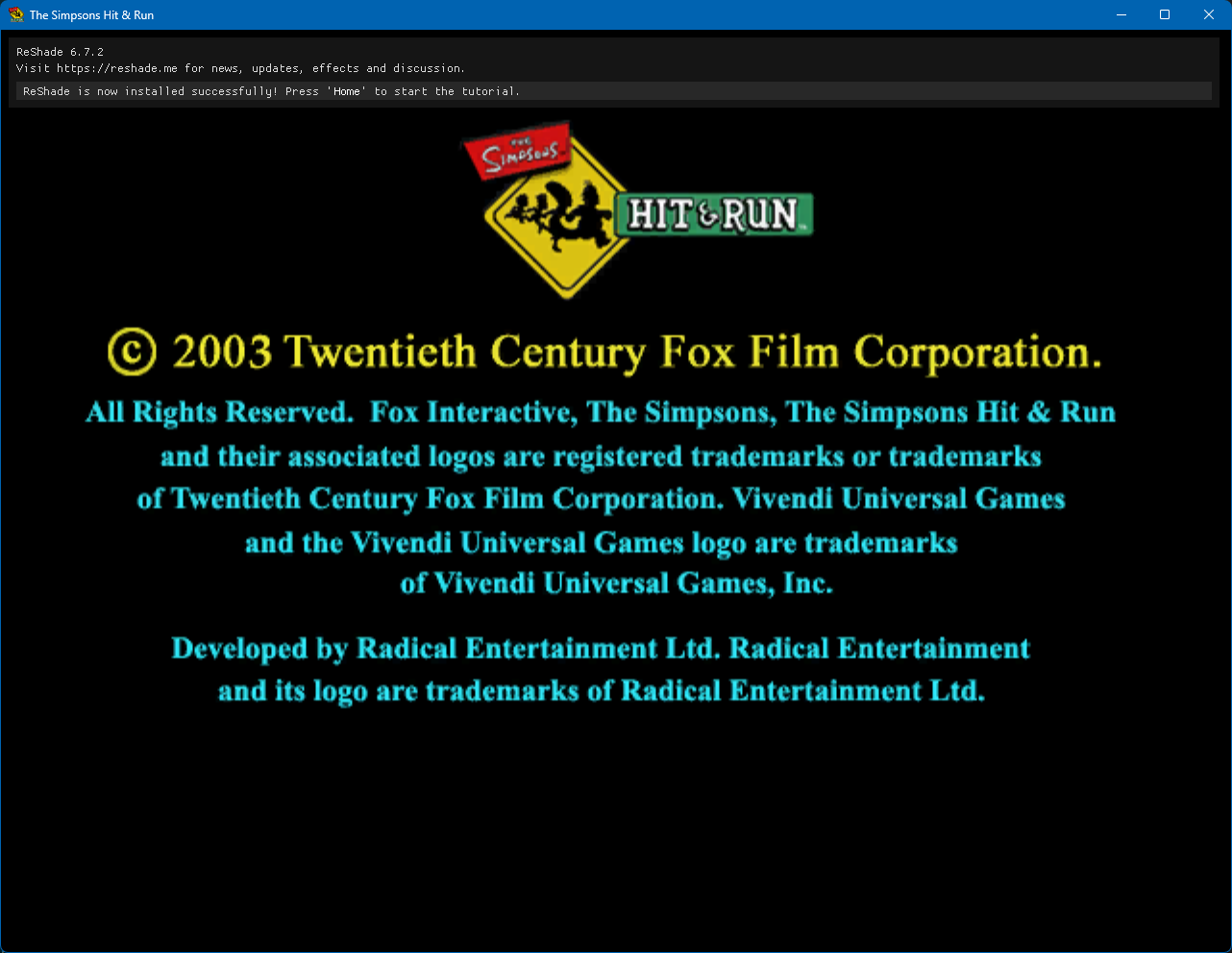
This is a tutorial for how to use ReShade with The Simpsons: Hit & Run.
Requirements
- A PC copy of The Simpsons: Hit & Run
- You may want to make a copy of your game install, but this is up to you.
- Lucas' Simpsons Hit & Run Mod Launcher
- ReShade
Steps
Step 1: Run ReShade Setup
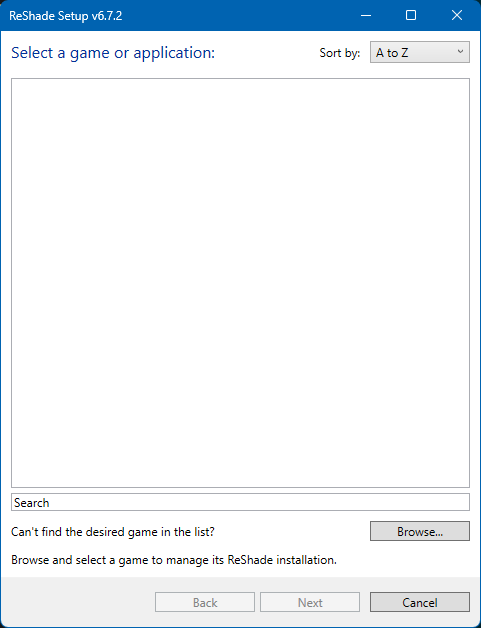
Once you've downloaded ReShade_Setup_6.X.X.exe from the link in the Requirements section above, run it.
This should give you this dialog:
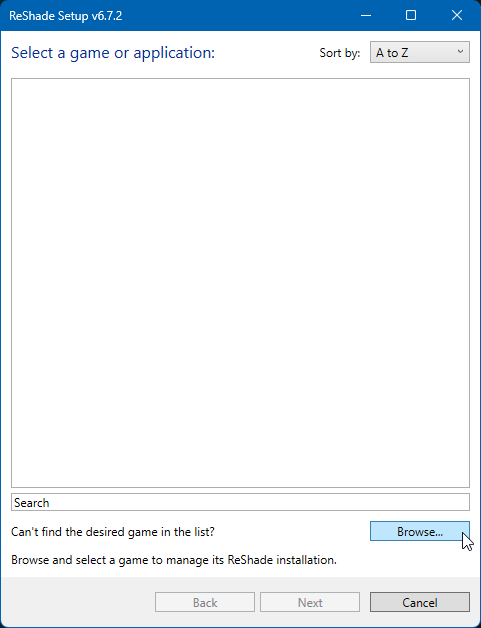
Step 2: Browse for The Simpsons: Hit & Run
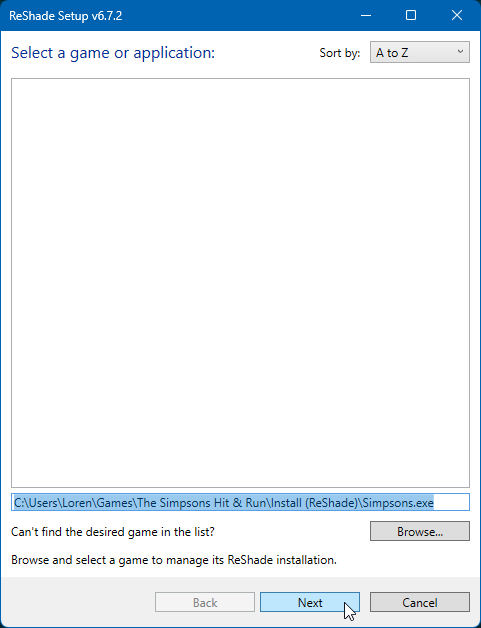
Click the Browse button on the ReShade Setup window:
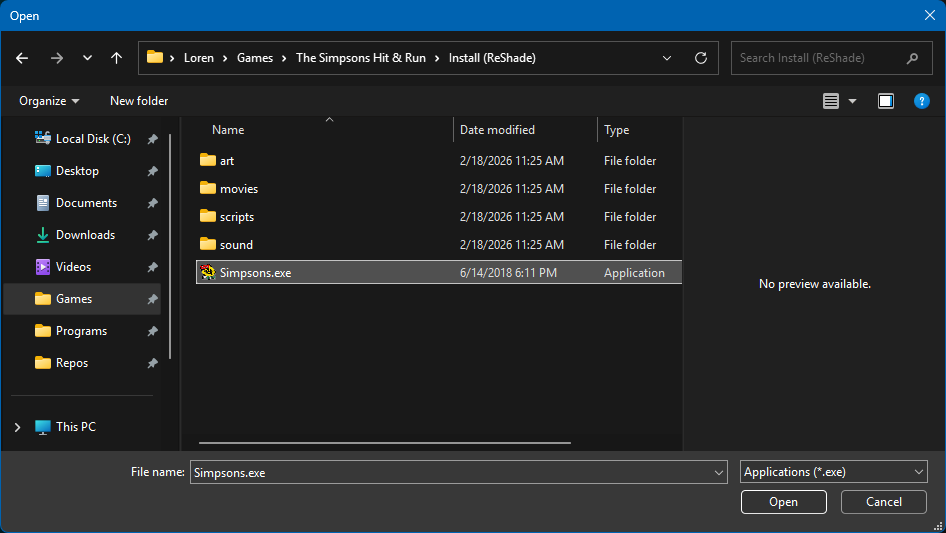
Then browse to your game install (typically located in C:\Program Files (x86)\Vivendi Universal Games\The Simpsons Hit & Run), choose Simpsons.exe and click Open:
And then click Next on the ReShade Setup window:
Step 3: Select Rendering API
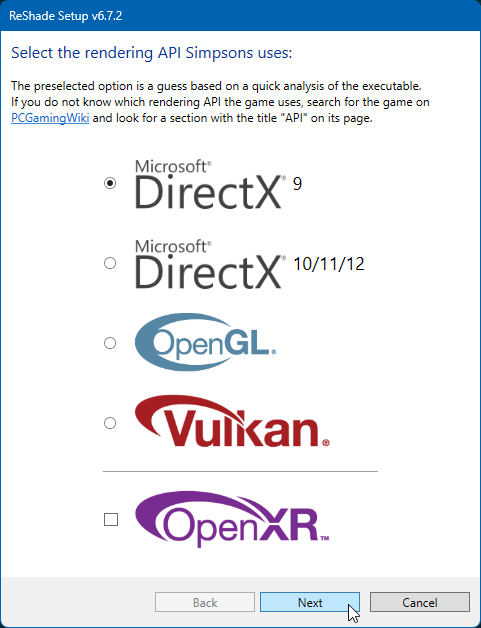
The ReShade Setup will now prompt you to choose a rendering API. For this game, check Microsoft DirectX 9 and then click Next:
Step 4: Choose Effects
The ReShade Setup will now ask you to choose effects or select a preset .ini file:
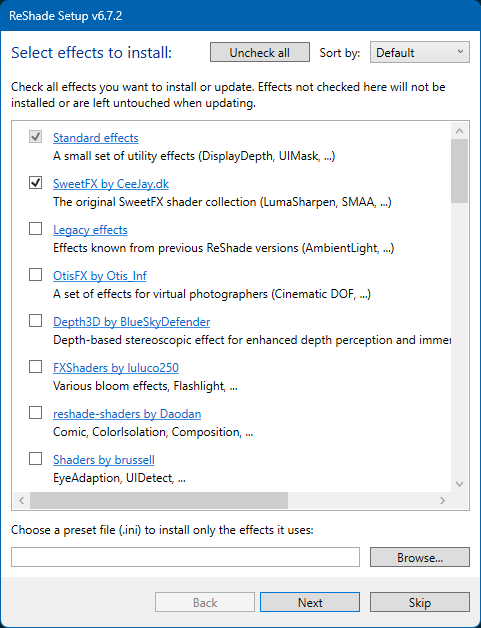
Feel free to peruse the options, or just leave the defaults. Either way, when you're ready, click Next to install ReShade.
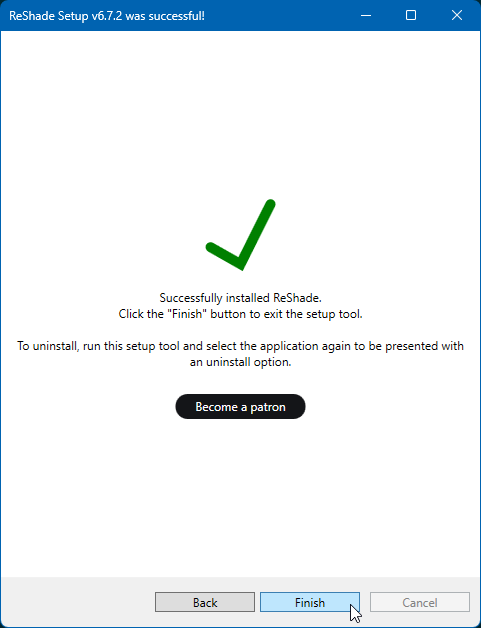
Installation will probably only take a few seconds and, once it is done, just click Finish:
Step 5: Mod Launcher Setup
Now that ReShade is installed, you just need to do a little bit of setup in Lucas' Simpsons Hit & Run Mod Launcher.
Open the Mod Launcher and then click File and choose Launcher Settings...:
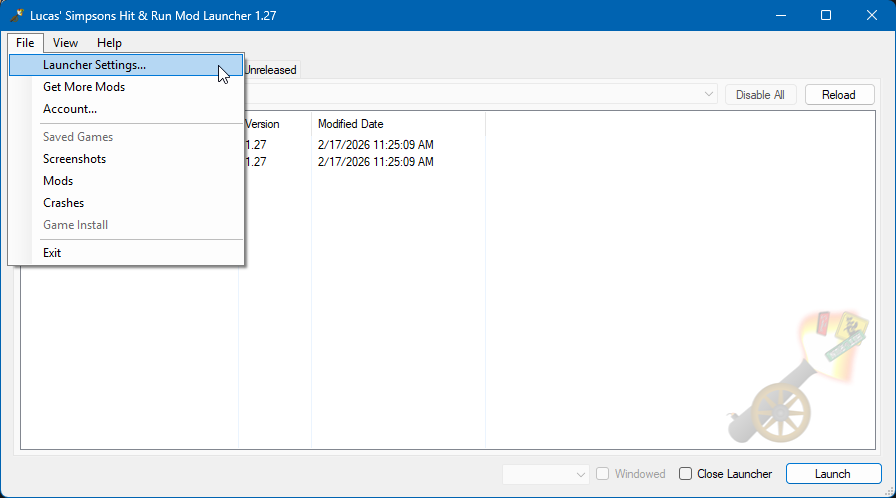
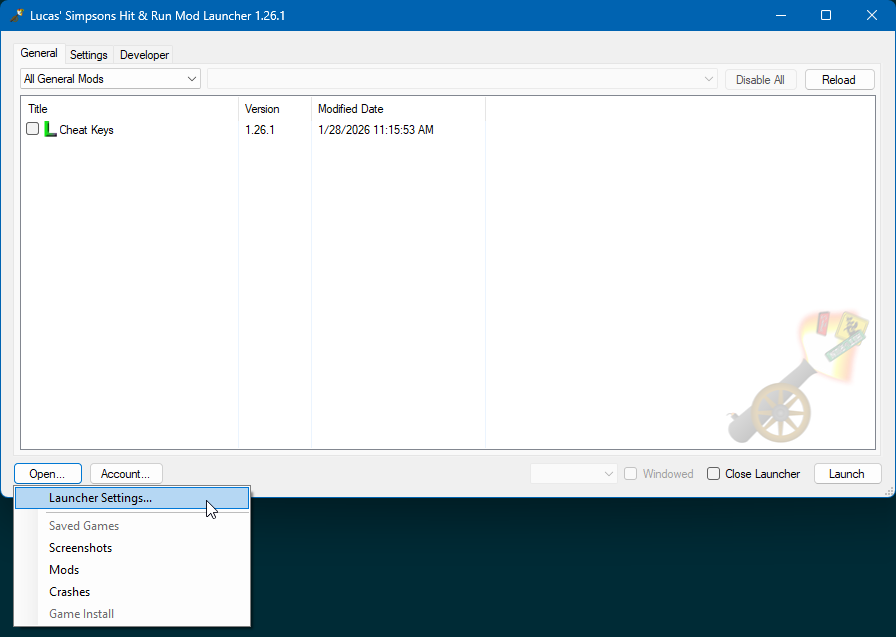
Open the Mod Launcher and then click Open... and choose Launcher Settings...:
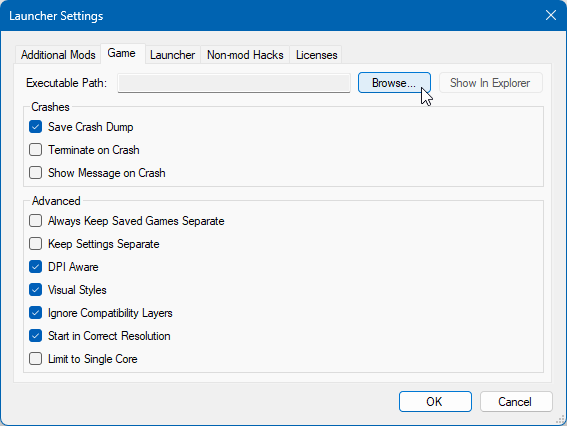
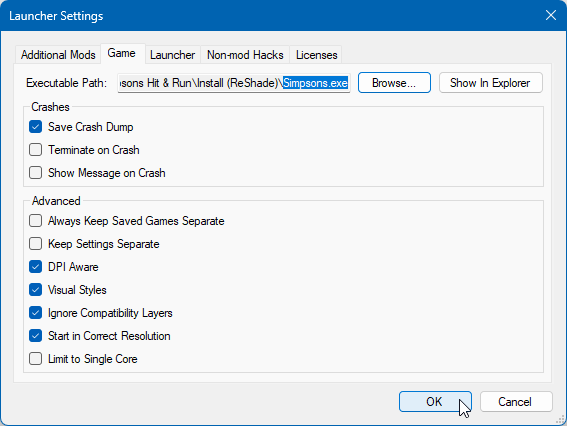
Once you're in Launcher Settings, go to the Game tab and click Browse next to Executable Path:
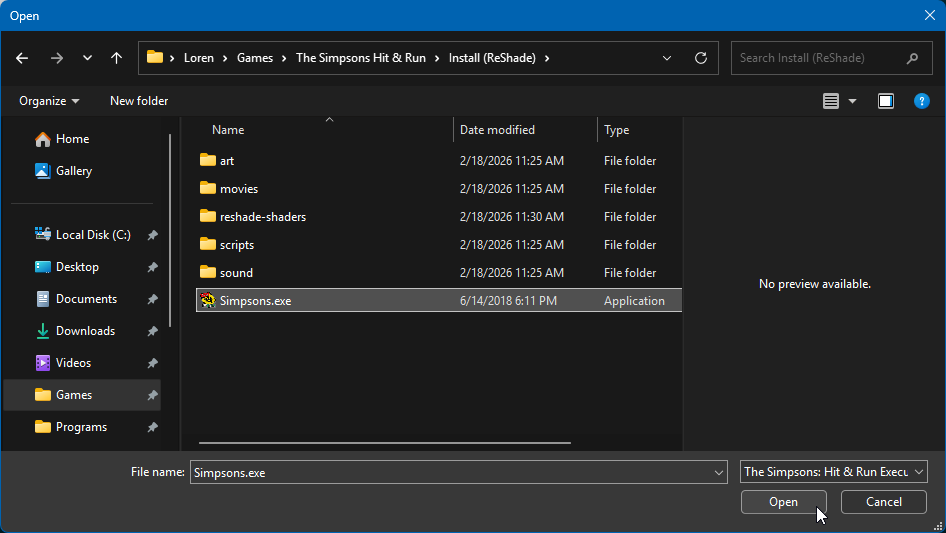
Now simply choose the same Simpsons.exe you chose in Step 2 and click Open:
And finally, just click OK on the Launcher Settings window:
Step 6: Enable Direct3D 9
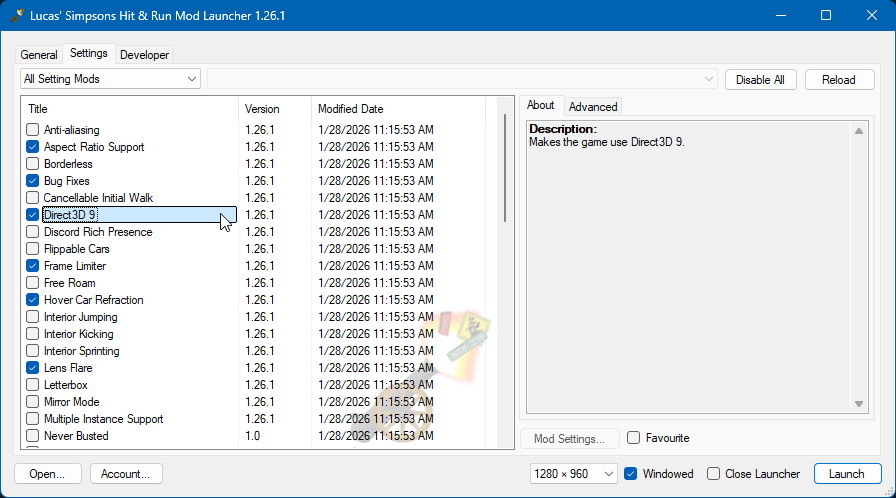
To use your ReShade installation, you now just need to enable the Direct3D 9 hack on the Settings page of the mods list:
Step 7: Launch the Game
Now launch the game and you should get an overlay from ReShade, indicating it's working and ready to use: